The big picture
The camera reads a 32×24 grid of temperatures from an MLX90640 sensor up to 16 times a second, cleans it up (denoise, median) and keeps the newest frame in memory. Four readers take frames from there, each at its own pace: the LCD, the WiFi web app, the USB stream and the Bluetooth stream.
The unusual part is the interface. The camera doesn't serve pages that contain its controls. It builds the interface itself, in C++, and sends it as JSON messages that bitwrench.js turns into the page. Because the interface is just messages, the same one travels over WiFi, a USB cable or Bluetooth, and a web page that knows nothing about the firmware version can show it.
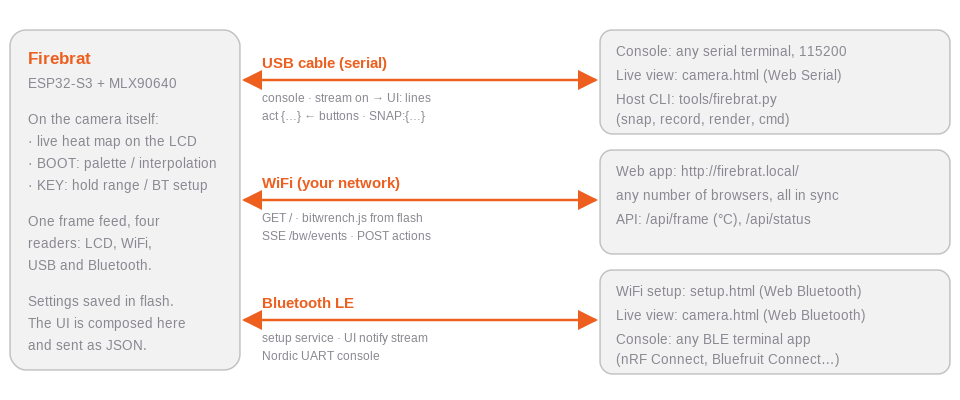
Every way in
| Way in | What you get | What you need | Where the UI comes from |
|---|---|---|---|
| The camera itself | Live heat map, max / centre / min, network status; buttons for palette, interpolation, range hold and Bluetooth setup | Nothing | Drawn by the firmware on the LCD |
| WiFi web app | The full UI: controls, image-quality sliders, snapshots, recording, hover temperatures | The camera on your WiFi; any browser on the same network | Served from the camera's flash; controls sent by the camera |
| WiFi HTTP API | /api/frame (temperatures in °C as JSON), /api/status | Same network; curl, a script | Plain JSON |
| USB console | Every setting and diagnostic as typed commands (help) | A cable and any serial terminal at 115200 | The camera's console (xelp) |
| USB live view | The same full UI as WiFi, with no network | A cable and Chrome or Edge (Web Serial) | camera.html on this site; controls sent by the camera over the cable |
| Host CLI | Snapshots and recordings as PNG, CSV and JSON on your computer | A cable and Python with pyserial | tools/firebrat.py |
| Bluetooth WiFi setup | Give the camera your WiFi; scan; forget | Chrome or Edge (desktop, Android), or Bluefy on iOS | setup.html on this site |
| Bluetooth live view | The same full UI, with no WiFi and no cable (up to about 15 fps) | Web Bluetooth (as above) | camera.html; controls sent by the camera over Bluetooth |
| Bluetooth console | The same commands as the USB console | Any BLE terminal app (nRF Connect, Bluefruit Connect, Serial Bluetooth Terminal) | The camera's second console |
Inside the camera
At power-up
- Settings load from flash: WiFi, hostname, palette, frame rate, denoise and the rest.
- The screen shows a splash.
- The sensor is found. The camera tries the I2C pin pairs it knows (the T-Display-S3's connectors, then common generic pins), recovers the bus first in case a reset interrupted a transfer, and remembers the pins that worked.
- WiFi starts if a network is saved. The camera keeps retrying in the background if it can't connect.
- Bluetooth starts advertising as
Firebrat-XXXX(the last four hex digits of its address). It stays discoverable whenever no phone or computer is connected to it. - Both consoles start, USB and Bluetooth, with the same commands.
Tasks and cores
The ESP32-S3 has two cores. The work is split so that a slow reader never holds up the others:
| Task | Core | Job |
|---|---|---|
| Sensor | 1 | Read both half-frames over I2C (1 MHz at 8 and 16 fps), fix the chess pattern, denoise, median, publish the frame |
| LCD | 1 | Upscale 7× (nearest, bilinear or bicubic) and draw, about 14 ms render and 18 ms push per frame |
| USB stream | 1 | The live UI over the cable, while stream on |
| Main loop | 1 | Consoles, buttons, WiFi and Bluetooth bookkeeping, saving settings |
| Web | 0 | The live UI to every browser on WiFi |
| Bluetooth | 0 | The live UI and console output over Bluetooth |
Each stream sends only the newest frame when it is ready for one, never a queue. A slow Bluetooth link simply shows fewer frames, and can't make USB or WiFi skip any.
First-time setup
Out of the box the camera already works on its own screen. To use it in a browser over WiFi, it needs your network name and password. There are three ways to give them to it:
- Bluetooth, from this site: open WiFi setup in Chrome or Edge, click Connect, pick your network, enter the password, Save. The page then shows the camera's address.
- USB console: plug in, open a serial terminal at 115200 and type
wifi "My Network" "my password". Quotes allow spaces. - Bluetooth console: the same
wificommand from a BLE terminal app, while the setup window is open.
Once it joins, the camera shows its IP address and firebrat.local on its screen. Open either in a browser on the same network. The hostname can be changed with name.
The setup window
Anyone nearby can see the camera over Bluetooth, but it only accepts WiFi changes (save, scan, forget) during its setup window. The window is open:
- while no WiFi is saved, or while the camera is not connected to its WiFi;
- for 5 minutes after power-up;
- for 5 minutes after a long press on the KEY button, or
ble onat the USB console.
Outside the window, the camera refuses those writes and its Bluetooth status says so ("setup": false, then "refused": true). The setup page tells you to long-press KEY rather than doing nothing. The password can be written but never read back. To remove saved WiFi, use Forget saved WiFi on the setup page (during the window) or wifi forget at the USB console.
WiFi: the web app
On your network the camera is a small web server. Everything it serves is in flash, gzipped, with no file system:
| Request | What the camera sends |
|---|---|
GET / | A redirect to /index.html: a 27-line bootstrap page |
GET /bitwrench.js | bitwrench.js, 47 KB gzipped, cached by the browser for a year |
GET /thermal.js, /img/logo.svg | The frame painter (the same file this site uses) and the logo |
GET /bw/events | The live UI as Server-Sent Events: the whole page first, then updates |
POST /bw/events | Button and slider actions coming back from the page |
GET /api/frame | The current frame: 768 temperatures in °C, as JSON |
GET /api/status | Name, versions, IP, sensor state, number of viewers, uptime |
What happens when you open the camera in a browser:
- The bootstrap page loads bitwrench.js and the painter, sets the theme and calls
bw.connect('/bw/events'). - The camera answers with one
mountmessage: the whole interface (top bar, image, controls, image-quality card, info panel), composed in C++. - Then, for every frame, one
batchmessage: acallthat hands the frame to the page's painter, pluspatches for the max / centre / min readouts. Status (WiFi signal, heap, viewers) follows every 2 seconds. - When you press a button, bitwrench posts a small event naming its action (for example
pal-iron, from the button'sbw_act_pal-ironclass) back to/bw/events. The camera applies it, saves it, redraws its own screen, and sends the updated controls to every browser. All viewers stay in sync.
If a browser falls behind, the camera skips frames for it instead of queueing them.
USB: console, live view, host CLI
The USB cable is one serial port (the ESP32-S3's built-in USB) at 115200. Only one program can open it at a time, so close any serial monitor before using the live view or the host CLI.
The console
Type help for the list. The console runs on xelp, with line editing, history, quoted arguments, ; to chain commands, and a 256-byte line. The commands cover everything the web UI can do, and more:
status                     WiFi, web, Bluetooth and sensor state, frame timing, read errors
wifi "SSID" "password"     join a network (wifi scan, wifi forget)
palette iron               iron | rainbow | gray | hot | arctic
interp bicubic             nearest | bilinear | bicubic
rate 16                    full frames per second: 1 | 2 | 4 | 8 | 16
denoise auto               on | off | auto   (also blend, motion, chess, median)
range auto                 or: range 20 35
snap                       one frame as a SNAP:{json} line (snap csv for CSV)
ble on                     open the Bluetooth setup window for 5 minutes
stream on                  switch the port to the live UI (see below)
The live view over USB
Live camera on this site uses Web Serial. When you click Connect over USB and pick the camera's port, the page sends stream on. The camera then:
- stops echoing and stops printing its prompt, so nothing breaks a line;
- sends the same messages the web app gets over WiFi, one per line, each prefixed
UI:so the page can ignore anything else; - accepts actions back as lines of the form
act {"action":"pal-iron"}.
The page applies each UI: line with bw.apply(), and bitwrench routes button presses into act lines. No WiFi is involved; this works on a camera that has never seen a network. Measured: 15.8 fps with no skipped frames.
The host CLI
tools/firebrat.py talks to the console from a computer: snap saves a PNG, CSV or JSON snapshot, record saves a run of frames (about 16 fps), render turns saved frames into PNGs with the camera's own palettes and interpolation, and cmd runs any console command.
Bluetooth: setup, live view, console
The camera runs three Bluetooth LE services at once:
| Service | Characteristics | Used by |
|---|---|---|
Setup 8f3c0001-… | …0002 SSID (write), …0003 password (write only), …0004 command: connect | forget | scan, …0005 status JSON (read, notify), …0006 scan results (read) | setup.html |
| Live UI (same service) | …0007 UI stream (notify), …0008 commands: stream on | stream off | act {…} | camera.html |
Console: Nordic UART 6e400001-… | RX (write) and TX (notify) | Any BLE terminal app |
Setup over Bluetooth
The setup page connects, reads the status (WiFi state, SSID, IP, and whether the setup window is open) and listens for changes. A notification can be cut to the Bluetooth packet size, so the page treats each one as a nudge and reads the full status again. Save writes the SSID and password, then connect. Scan asks the camera to scan and reads the list it finds.
The live view over Bluetooth
The same page as USB, a different pipe. The page writes stream on to the command characteristic and the camera sends the UI messages as notifications, split to fit the negotiated packet size (the camera offers up to 517 bytes) and joined back into lines by the page. Bluetooth is slower than USB (about 17 KB/s), so frames travel in a compact form: one byte per pixel, scaled between a low and a high temperature, instead of two. That gives up to about 15 fps.
The Bluetooth console
A second console with the same commands as USB, over the Nordic UART Service that BLE terminal apps understand. Commands that could lock you out (WiFi, hostname, sensor pins, the setup window, reboot) only work while the setup window is open.
One connection at a time
While a phone or computer is connected, the camera stops advertising, so others can't find it. If the camera seems to have vanished, disconnect it from the other page or device first (the console's status shows ble: connected when something is attached).
One UI, sent as data
Every live view (WiFi, USB, Bluetooth) runs the same interface, because the camera sends it as data rather than as a page. The messages follow bitwrench's bwserve protocol:
{v:1, type:'mount', ref:'#app', taco:{t:'div', c:[ …the whole interface… ]}}

{v:1, type:'batch', ops:[
  {v:1, type:'call',  name:'thermal', args:[{w:32, h:24, pal:'iron', interp:'bicubic',
                                             lo:22.1, hi:30.3, px:'<base64>'}]},
  {v:1, type:'patch', ref:'fb-max', text:'30.3'},
  {v:1, type:'patch', ref:'fb-min', text:'22.2'}
]}- mount puts a piece of interface on the page. The camera sends the whole page on connect, and a fresh controls card when settings change.
- patch changes text or attributes in place: readouts, the colour bar, slider values. Sliders are patched, never re-mounted, so one you are dragging is never reset.
- call runs a function the page registered (
bw.registerRemote('thermal', …)). Drawing the heat map needs code, and code never crosses the wire; the camera only sends the numbers. - batch groups one frame's messages so they apply together.
| Camera sends | Page sends back | Page connects with | |
|---|---|---|---|
| WiFi | Server-Sent Events on /bw/events | POST /bw/events | bw.connect() |
| USB | Lines prefixed UI: | act {…} lines | Web Serial + bw.apply() |
| Bluetooth | Notifications, compact frames | act {…} writes | Web Bluetooth + bw.apply() |
Two things follow from the camera owning the UI. The pages on this site work with any Firebrat firmware, older or newer, because the camera brings its own controls. And a new control means changing the firmware only.
Settings and what persists
Settings live in the ESP32's flash (NVS) and survive power-off: WiFi name and password, hostname, palette, interpolation, frame rate, denoise (auto or manual blend and motion), chess fix, median, flips, colour range, and the sensor's I2C pins. Slider changes are saved after a short pause, so dragging doesn't wear the flash. wifi forget erases the WiFi credentials only.
Security in one paragraph
Firebrat is built for a home or lab network. The web app and the Bluetooth live view have no login and no encryption: anyone who can reach the camera on your WiFi, or is in Bluetooth range, can watch and change view settings. WiFi credentials can only be changed over Bluetooth during the setup window, and the password is never readable. The camera never contacts the internet. Details and how to report a problem: SECURITY.md and PRIVACY.md.
Where it lives in the code
| Part | Files |
|---|---|
| Sensor, denoise, frame feed | src/thermal.cpp, src/imaging.cpp (pure, unit-tested) |
| LCD and buttons | src/display.cpp, src/main.cpp |
| WiFi, web server, the UI composed in C++ | src/net.cpp |
| Bluetooth services | src/ble.cpp |
| Consoles (USB and Bluetooth) and the USB stream | src/cli.cpp |
| Settings in flash | src/settings.cpp |
| The camera's bootstrap page | web/index.html |
| The frame painter (camera and site) | docs/thermal.js |
| Live view and setup pages | docs/camera.js, docs/setup.js |
| Host CLI | tools/firebrat.py |
The Docs page has build and flashing steps, wiring, every setting and troubleshooting. The source is on GitHub.